

HW07D FIRMWARE UPDATE GUIDE
How to Update Your HW07D Firmware
Update your HW07D firmware through the app using either of the two methods below. Start by connecting your device to Wi-Fi, then check for an available firmware update.
Before You Start
- Open the app and make sure your HW07D is connected and accessible from the device control screen.
- Confirm that the device is connected to Wi-Fi. A Wi-Fi connection is required for the firmware update.
- Keep the device powered on and maintain a stable network connection throughout the update.
Method 1: Update Through Device Settings
- Open the app and select your connected HW07D.
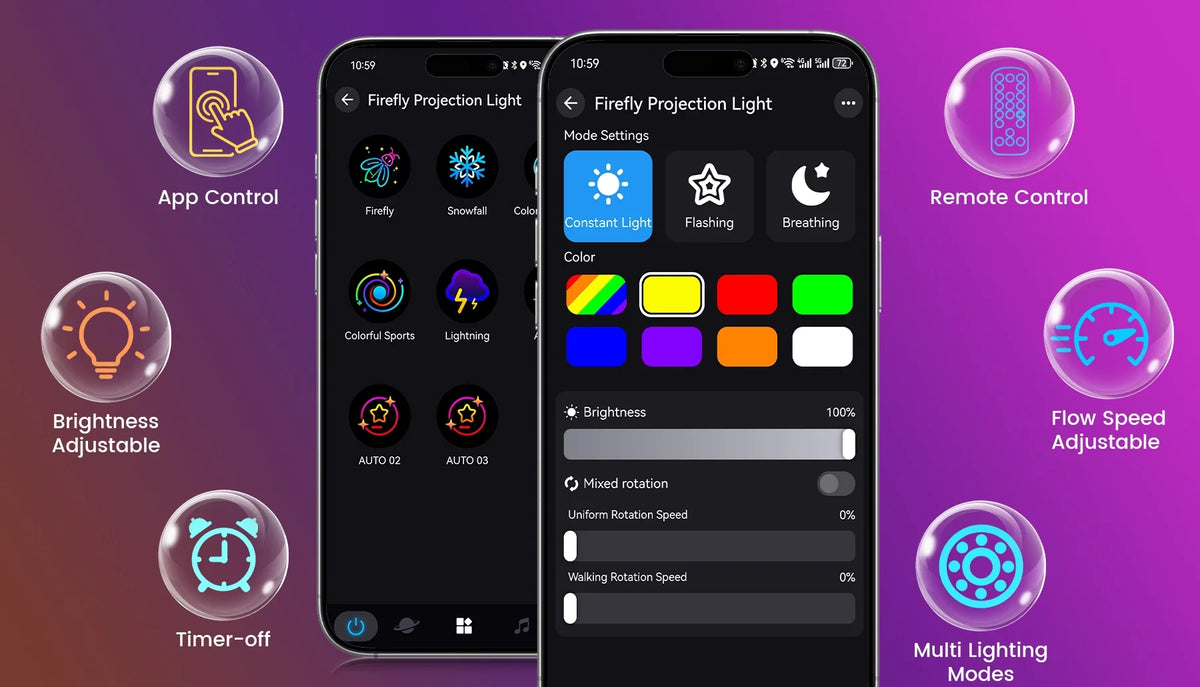
- On the device control screen, tap the three-dot menu (…) in the upper-right corner.
- In the device settings, look for Firmware, Firmware Version, or Check for Updates. Menu labels may vary by app version.
- Open the relevant update option and follow the on-screen instructions if an update is available.

Method 2: Check for Updates Through Your Profile
- Open the app and tap the Profile tab in the bottom-right corner. Depending on your app version, this may be labeled Me or My.
- Find and open Settings Update or Check for Updates.
- If a firmware update is listed, follow the on-screen instructions to complete it.

HW07D Firmware Update FAQ
Does the HW07D need Wi-Fi for a firmware update?
Yes. Connect your HW07D to the app and make sure the device is connected to Wi-Fi before starting the firmware update.
Do I need to use both update methods?
No. You can check for an available firmware update using either the device settings or the profile update menu.
What should I avoid during the update?
Avoid turning off or unplugging the device. Keep the Wi-Fi connection stable and follow the instructions shown in the app.
What if I cannot follow the steps or complete the update?
Contact our customer support team and describe where you need help. Include a screenshot of the app or any message displayed.
Discover the HW07D Outdoor Laser Projector Pro
Bring moving firefly lights to your outdoor space. Explore the HW07D product page for details and available options.
Shop HW07DBefore adding to cart, select the HW07D model and the correct plug type for your destination country.
Still Need Help? Contact Us
If any step is unclear or you cannot complete your HW07D firmware update, our customer support team can help.
When contacting us, please include:
- Your order number, if available.
- Your device model and current firmware version, if accessible.
- A brief description of the issue, plus a screenshot or short video showing the step or message you need help with.
Email: service@twelvetooo.global

Share:
Twelvetooo HW10D Review: Ocean Wave Projector Tested at 65 Feet